

Documentation Index
Fetch the complete documentation index at: https://docs.affeasy.link/llms.txt
Use this file to discover all available pages before exploring further.
1. Prerequisites
Before you begin, ensure you have:- An active Commission Junction (CJ) Publisher Account
- An AffEasy account
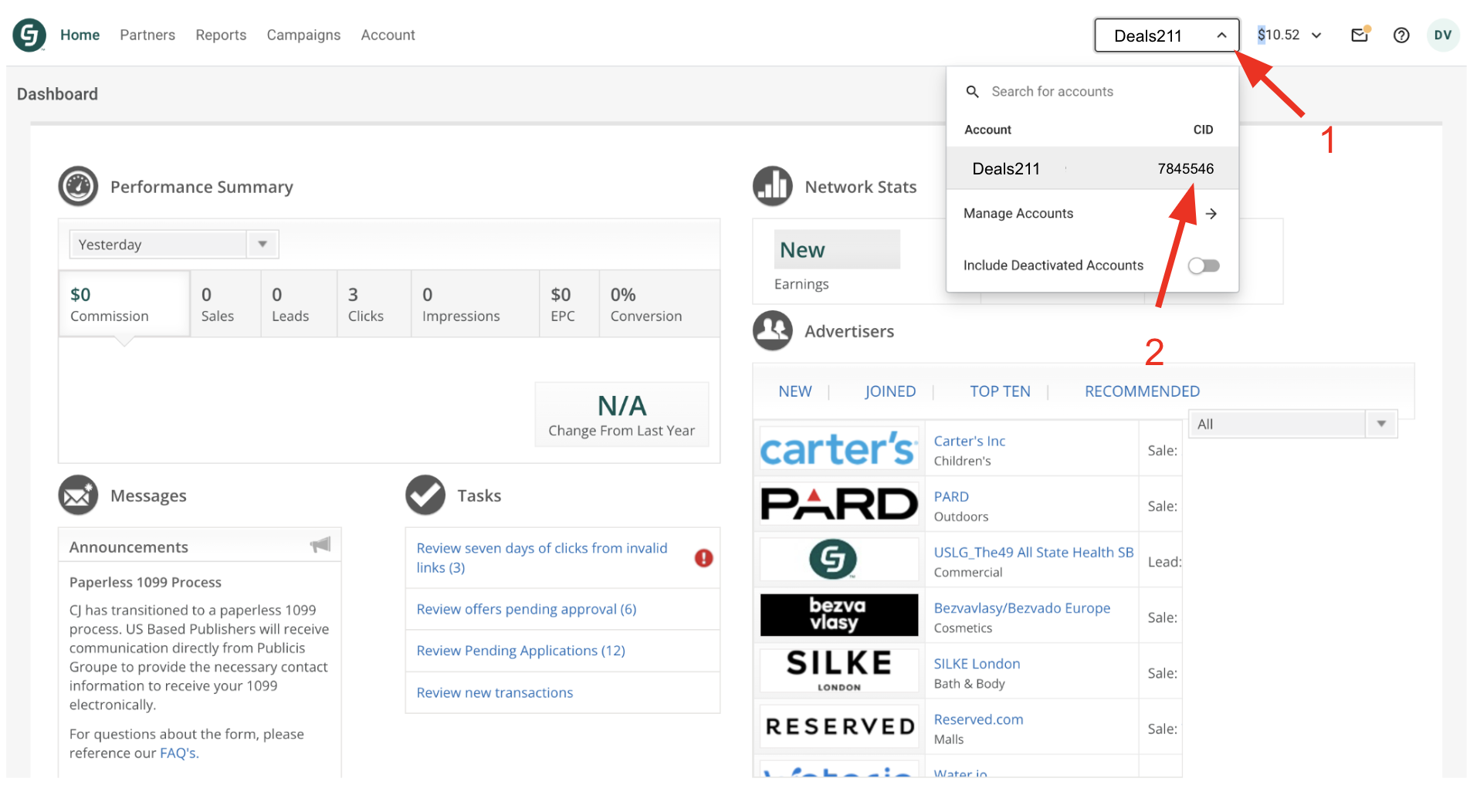
2. Obtain Your CJ CID
- Log in to your CJ publisher account.
- On the dashboard, locate your CID.
- Copy the CID (it should be a string of numbers).
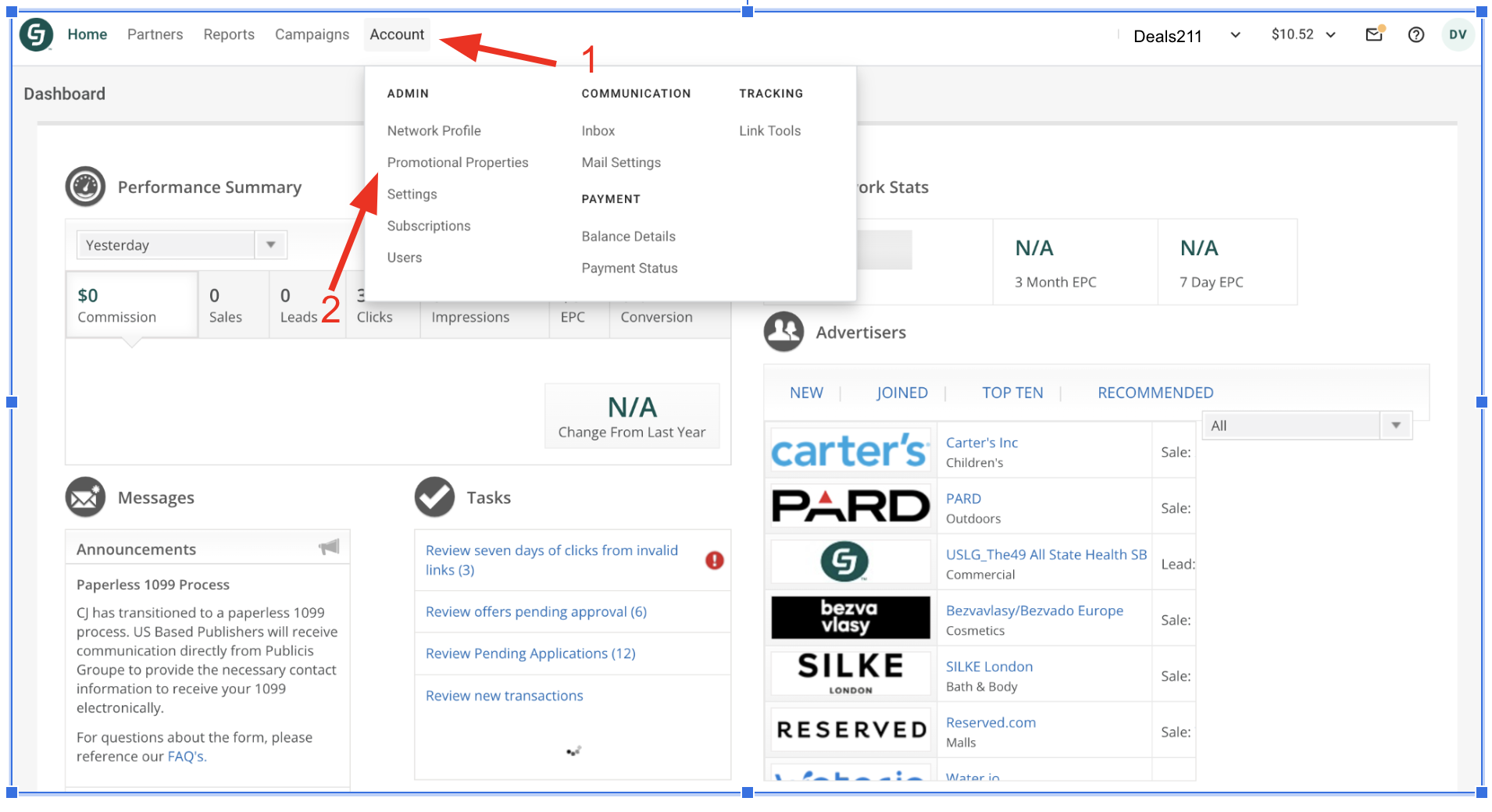
3. Obtain Your CJ Property ID
- From your dashboard, navigate to the promotional properties settings.
- On the dashboard, locate the Property ID.
- Copy the Property ID (it should be a string of numbers).
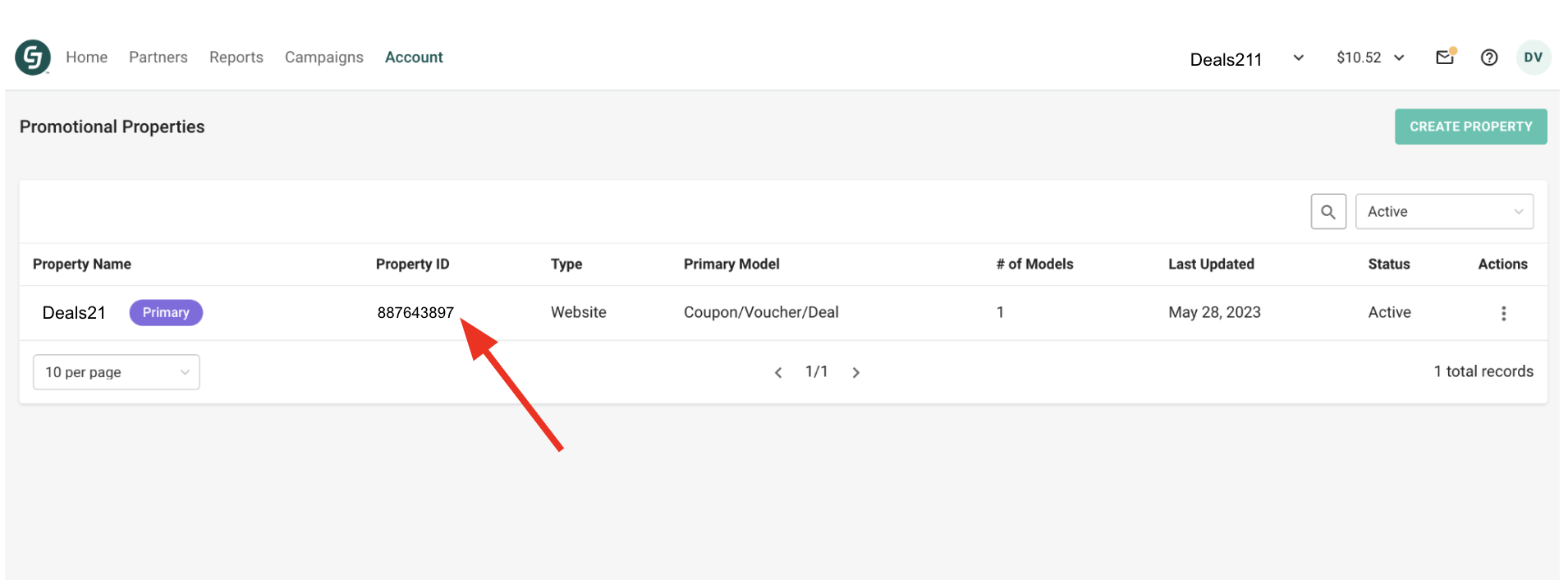
AffEasy currently supports one property ID per account. We’re working on supporting multiple IDs in the future.
4. Create a New Peronal Access Token
- Route to the CJ developers portal . You should be automatically logged in. If not, use the same credentials as your main CJ account.
- Route to the Personal Access Tokens settings page
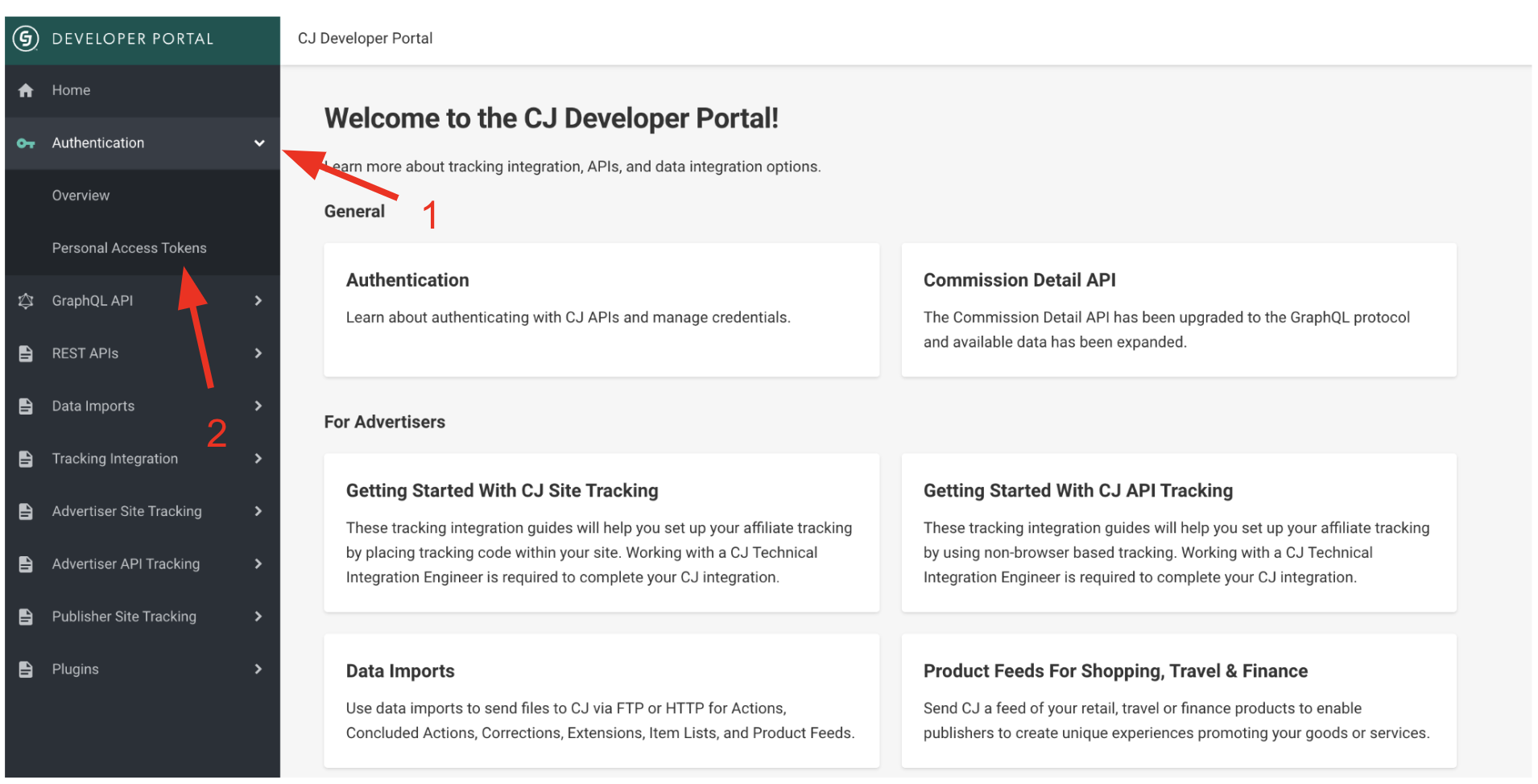
- Give your token a name (e.g., “AffEasy Integration”).
- Click “Register”.
- After creation, copy the provided Personal Access Token
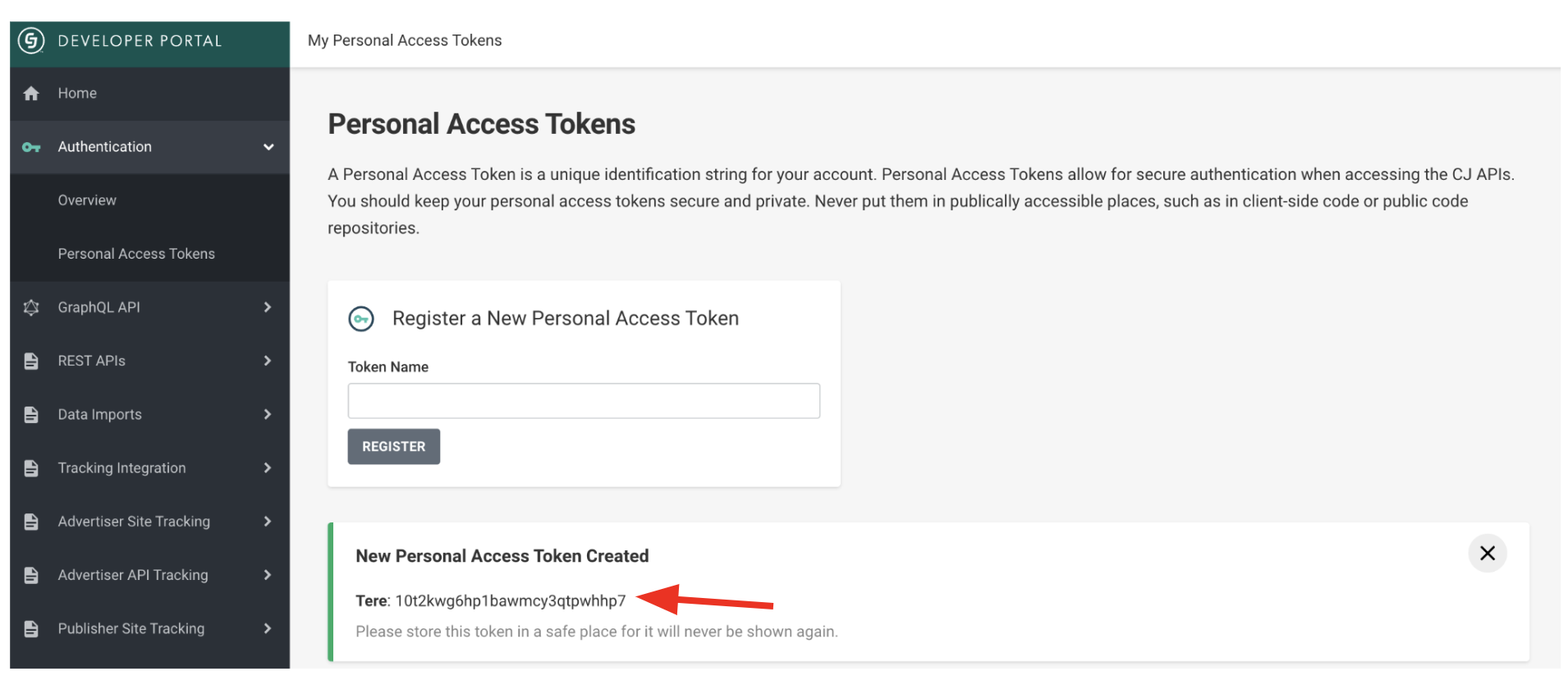
The token will only be shown once. If you don’t copy it immediately, you’ll
need to create a new one.
5. Connect CJ to AffEasy
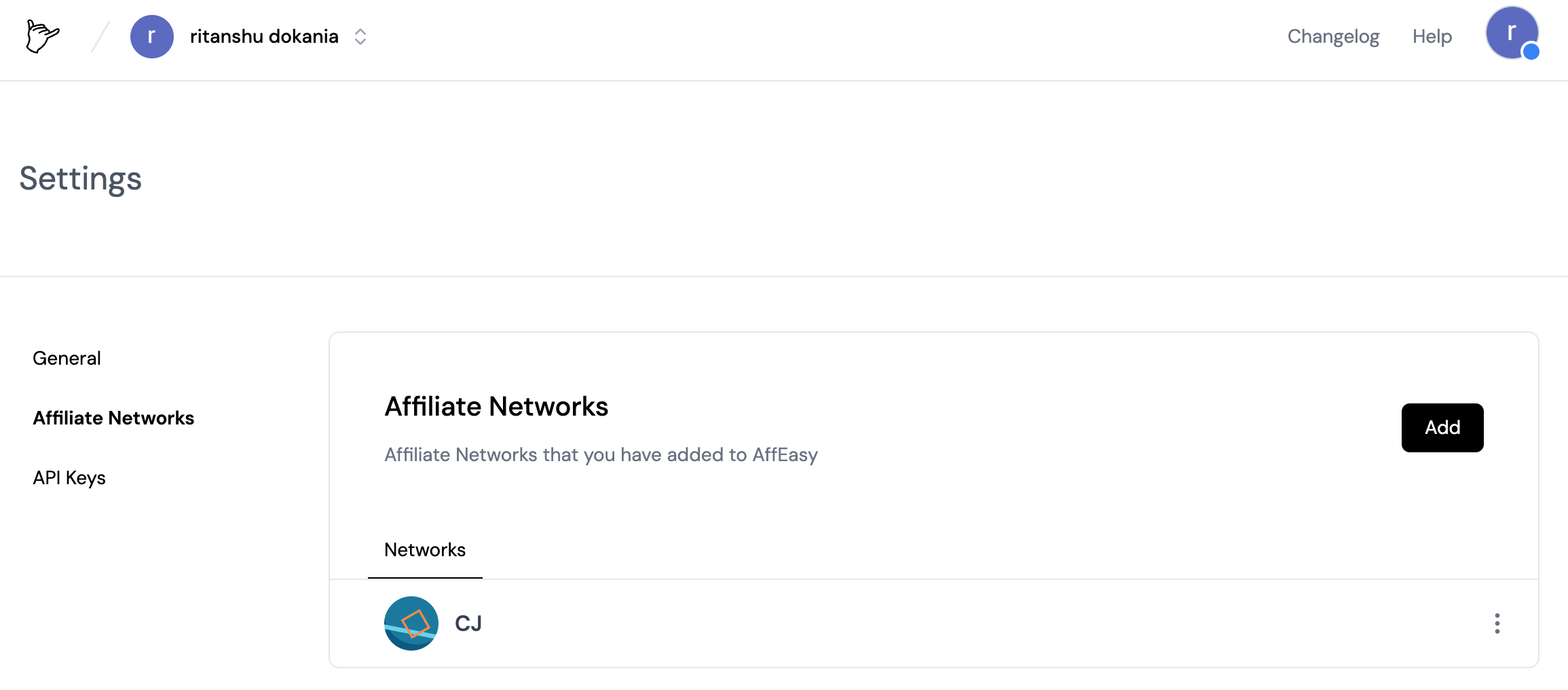
- Go to your AffEasy account settings.
- Click “Add”.

- Select Commission Junction (CJ) from the list.
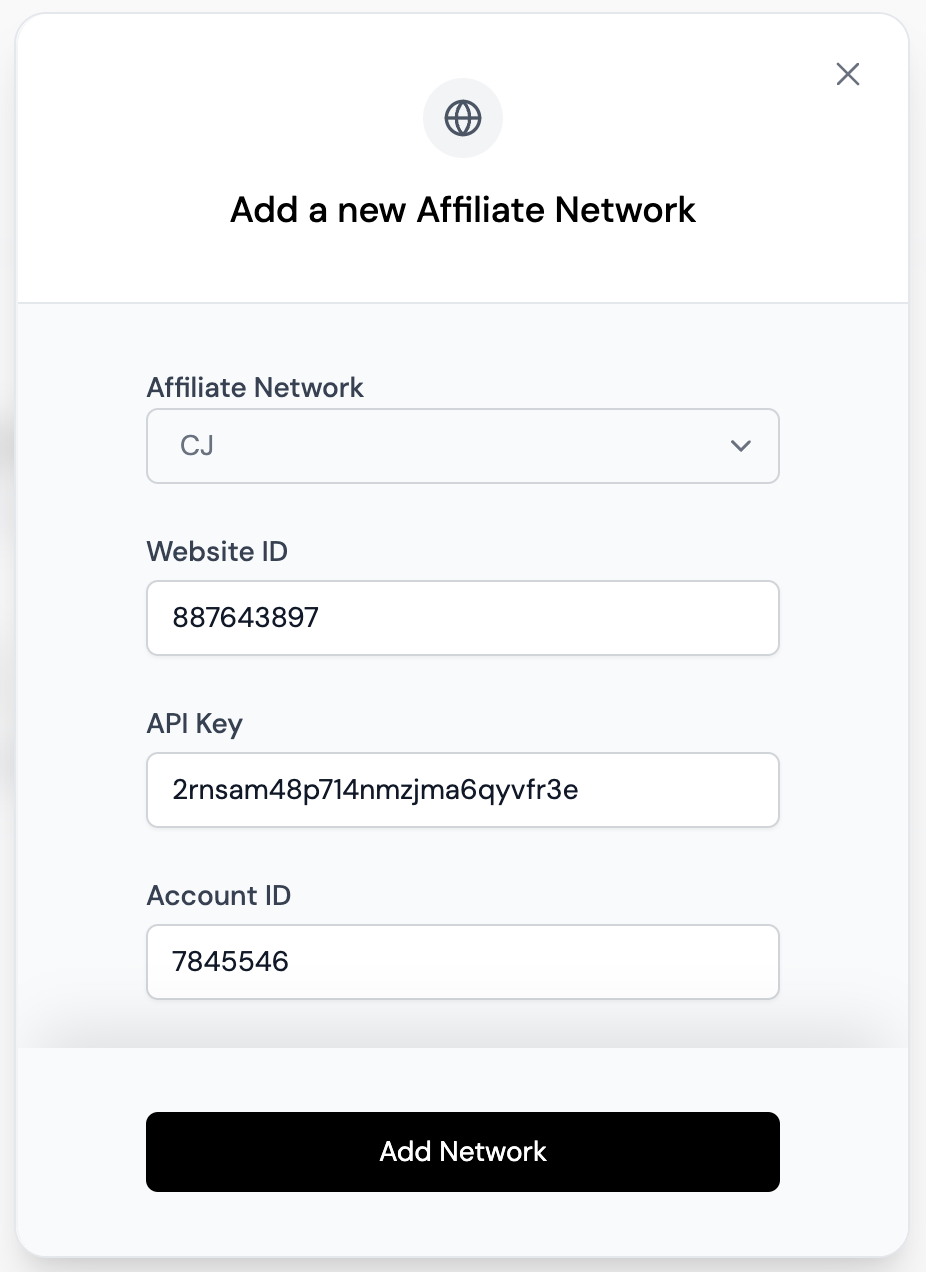
- Enter the following details:
- Website ID: Your Property ID (from Step 3)
- Account ID: Your CID (from Step 2)
- API Key: Your Personal Access Token (from Step 4)
- Click “Add Network” to finalize the integration.
What’s Next
Congratulations! Your Commission Junction account is now connected to AffEasy. Here’s what you can expect:- AffEasy will automatically sync your CJ brand partnerships.
- You can now create affiliate links for your CJ brands directly from your AffEasy dashboard.
- No need to use CJ’s tools for link generation anymore.
Troubleshooting
If you encounter any issues during the integration process:- Double-check all entered information for accuracy.
- Ensure your CJ account is in good standing.
- Ensure that the information was entered correctly:
- Website ID: Your Property ID (from Step 3)
- Account ID: Your CID (from Step 2)
- API Key: Your Personal Access Token (from Step 4)
- Clear your browser cache and try again.
- Contact AffEasy support if problems persist.